Canvas
Artificial intelligence is changing the way people write, research, code, design, and build digital projects. One of the tools attracting attention in this space is Gemini Canvas, a workspace inside Google’s Gemini experience that is designed to help users turn ideas into editable documents, code, websites, apps, quizzes, and other interactive projects.
Instead of keeping everything inside a traditional chat conversation, Google Gemini Canvas gives users a more focused environment for creating and refining a project. You can start with a simple idea, ask Gemini to develop it, and then continue editing the result as your project becomes more detailed.
Whether you are a student preparing a study guide, a writer creating an article, a developer experimenting with an application, or a business professional planning a project, Gemini Canvas AI can provide a flexible way to move from an idea to a usable result.
What Is Gemini Canvas?
Gemini Canvas is an interactive workspace that allows users to create and refine content with Gemini AI. It can be used for writing, coding, research, educational projects, websites, apps, quizzes, visual content, and creative experiments.
The main difference between a normal AI conversation and a canvas-style workspace is the way you work with the output. Instead of simply receiving an answer and starting again with another prompt, you can treat the generated result as a working project.
Google describes Canvas as a place where users can generate and edit documents, apps, slides, and code. This makes the Gemini Canvas tool useful for projects that require several rounds of changes rather than a single answer.
The basic idea is simple:
Idea → Prompt → First version → Edit → Improve → Final project
That workflow makes Gemini Canvas more than just an AI writing assistant. It can become a practical Gemini Canvas workspace for turning ideas into structured digital projects.
How Does Gemini Canvas Work?
If you are wondering how does Gemini Canvas work, the process is relatively straightforward.
You begin with an instruction or prompt describing what you want to create. Gemini can then generate an initial version of your project. After that, you can ask for changes, rewrite sections, adjust the tone, modify formatting, improve code, or expand the project.
For example, instead of asking for a general explanation about healthy eating, you could ask Gemini Canvas to create a structured educational guide with headings, examples, and a short quiz.
The important part is that you can continue working on the same project.
This makes the Gemini Canvas interface useful when your work needs refinement. You do not have to recreate the entire project every time you want to make a small change.
How to Use Gemini Canvas
If you are learning how to use Gemini Canvas, start with a clear goal rather than a complicated prompt.
Step 1: Decide What You Want to Create
First, identify your project.
It could be:
- A document
- Blog article
- Research report
- Website
- Web app
- Quiz
- Game
- Infographic
- Study guide
- Presentation
- Code project
- Business dashboard
Step 2: Write a Clear Prompt
Tell Gemini what you want, who it is for, and what the final result should look like.
For example:
Create a beginner-friendly study guide about climate change with clear headings, short explanations, examples, and a 10-question practice quiz.
A specific instruction generally gives you a more useful starting point than a vague request.
Step 3: Review the First Version
Do not treat the first generated result as automatically final. Read it carefully and identify what needs improvement.
You might ask Gemini to:
- Make the introduction clearer
- Shorten long sections
- Add examples
- Change the tone
- Improve formatting
- Correct code
- Add missing information
- Create additional sections
Step 4: Refine Your Project
This is where the Gemini Canvas editor becomes especially useful. You can continue developing the same project rather than starting from zero.
Gemini Canvas for Writing
One of the most practical uses of Gemini Canvas writing is creating and improving documents.
Writers can use the workspace for:
- Essays
- Blog posts
- Articles
- Reports
- Speeches
- Stories
- Research documents
- Content ideas
- Drafts
- Rewriting
- Proofreading
The Gemini Canvas writing tool can also help users adjust the tone and length of content. For example, a technical explanation could be rewritten for beginners, while a casual paragraph could be transformed into a more professional version.
You can ask Gemini to shorten text, expand text, rewrite content, change tone, or improve writing without rebuilding the entire document.
This makes it useful for people who already have a draft but want to make it clearer and easier to read.
Gemini Canvas for Articles and Blogs
For content creators, Gemini Canvas article and Gemini Canvas blog workflows can be useful for organizing a long piece of content.
A writer could start with a topic, create an outline, develop each section, and then refine the final draft.
For example:
Topic → Outline → Introduction → Main sections → FAQ → Editing → Final draft
The same approach can be used for reports, speeches, stories, and other long-form documents.
However, human review remains important. AI-generated content should be checked for accuracy, originality, context, and the needs of the intended audience.
Gemini Canvas for Coding
Gemini Canvas is not limited to writing. Gemini Canvas coding is another important use case.
Developers and beginners can experiment with:
- HTML
- CSS
- JavaScript
- React
- Python
- Web applications
- Interactive prototypes
- Scripts
- Code snippets
The Gemini Canvas code editor can be useful when you want to generate an initial implementation and then modify it through additional instructions.
For example, you could ask:
Create a responsive landing page for a small business using HTML and CSS.
After receiving the first version, you could request:
Add a pricing section and make the design mobile-friendly.
Then:
Add a contact form and improve the navigation.
This iterative approach makes Gemini Canvas useful as a coding assistant, particularly for prototypes and learning.
Google’s documented Canvas capabilities include generating and previewing React or HTML and working with prototypes, code snippets, and scripts.
Can Gemini Canvas Generate HTML and React Code?
Yes, the keyword set specifically includes Gemini Canvas generate HTML and Gemini Canvas generate React code because Canvas can be used for these types of development tasks.
It can help create an initial structure, demonstrate an idea, or develop a working prototype. Developers should still test generated code, review dependencies, check security, and make sure the implementation meets production requirements.
Build a Website With Gemini Canvas
If you want to build a website with Gemini Canvas, you can describe the type of website you want and provide details about its audience and features.
For example:
Create a modern website for a local car rental company with a homepage, vehicle section, pricing area, FAQ, contact form, and responsive design.
Gemini can then help develop the requested structure.
Possible projects include:
- Business websites
- Landing pages
- Portfolio websites
- Interactive websites
- Product pages
- Educational websites
- Prototype websites
The Gemini Canvas website builder concept is particularly useful for quickly testing an idea before investing significant development time.
Creating Apps With Gemini Canvas
You can also use Canvas for application concepts.
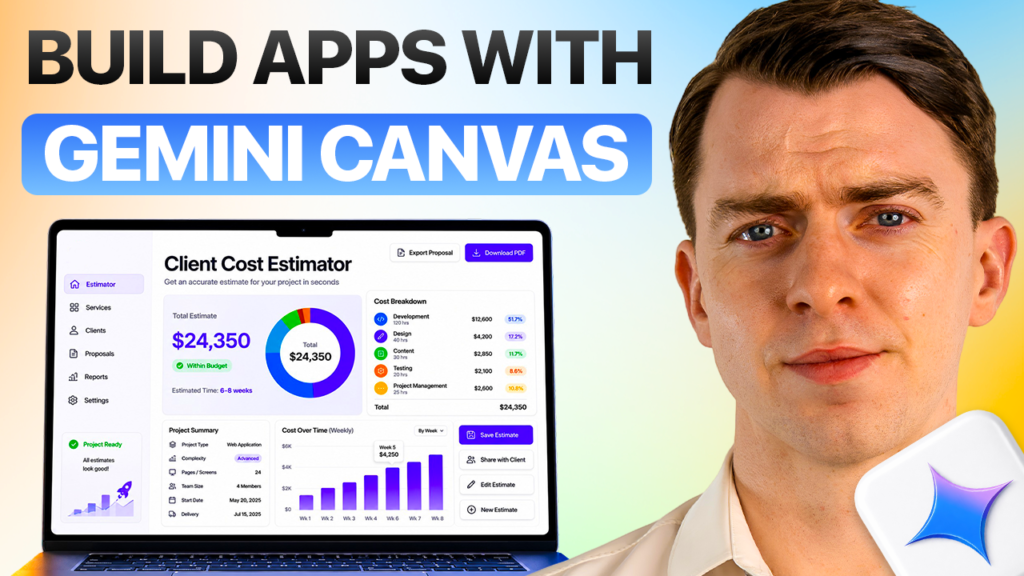
The keyword set includes Gemini Canvas app builder, create app with Gemini Canvas, build app with Gemini Canvas, and Gemini Canvas web app.
A simple prompt could be:
Create a task-management web app where users can add, edit, complete, and delete tasks.
You can then continue improving the prototype by requesting additional functionality.
For example:
- Add categories
- Add search
- Add filtering
- Improve the interface
- Add a dashboard
- Make it responsive
- Add data visualization
This makes Canvas useful for experimenting with application ideas before moving to a larger development environment.
Gemini Canvas for Students and Education
Students can use Gemini Canvas for students for a variety of learning activities.
Possible uses include:
- Study guides
- Practice tests
- Flashcards
- Lesson plans
- Quizzes
- Interactive learning activities
- Student projects
- Educational applications
For example, a student studying biology could ask Canvas to create a study guide followed by a practice quiz.
A teacher could use it to develop a lesson structure or interactive educational material.
Google’s educational examples include quizzes, practice tests, study guides, visual timelines, interactive prototypes, code snippets, and scripts.
The most useful approach is to treat AI as a learning support tool rather than simply copying generated answers. Students can ask for explanations, examples, practice questions, and feedback to deepen their understanding.
Create Quizzes, Games and Interactive Projects
One of the more creative areas of Gemini Canvas is interactive content.
The keyword list includes:
- Gemini Canvas quiz
- Gemini Canvas quiz maker
- Gemini Canvas interactive quiz
- Gemini Canvas games
- Gemini Canvas game maker
- Create game with Gemini Canvas
- Gemini Canvas simulation
- Gemini Canvas animation
- Gemini Canvas 3D
These capabilities open the door to projects that go beyond traditional text.
For example, you could create:
Interactive Quiz:
A question-and-answer experience with instant feedback.
Educational Game:
A simple game designed around a particular subject.
Simulation:
A visual model demonstrating how a system works.
Infographic:
A visual presentation of complex information.
Interactive Learning Tool:
A small application designed to help students practice a skill.
Google’s Canvas examples include projects such as 3D planet generators, sound-memory games, music synthesizers, and algorithm visualizations.
Gemini Canvas and Deep Research
Another interesting workflow combines Gemini Canvas Deep Research with content creation.
Research can produce a large amount of information, but raw research is not always the easiest format for an audience.
The keyword list includes workflows such as:
- Deep Research to website
- Deep Research to infographic
- Deep Research to quiz
- Deep Research to web page
- Deep Research Canvas app
- Gemini Canvas research assistant
- Gemini Canvas research report
This means a research project can potentially be transformed into a more engaging format.
For example:
Research report → Canvas → Web page
or
Research report → Canvas → Quiz
or
Research report → Canvas → Infographic
Google documents the ability to transform a Deep Research report in Canvas into formats including a web page, infographic, quiz, or audio overview.
This workflow can be particularly useful when information needs to be presented differently for students, customers, readers, or a general audience.
Gemini Canvas Prompts
The quality of your instructions can make a major difference. That is why Gemini Canvas prompts are an important part of using the tool effectively.
Instead of:
Make a website.
Try:
Create a responsive website for a small fitness business. Include a homepage, services section, pricing, customer testimonials, FAQ, and contact section. Use a clean layout and make the navigation easy to use on mobile devices.
The second prompt gives Gemini more useful context.
Useful Gemini Canvas Prompt Ideas
Writing Prompt
Write a beginner-friendly article about artificial intelligence with clear headings, examples, and an FAQ section.
Website Prompt
Build a responsive landing page for a software company with a hero section, features, pricing, testimonials, and contact form.
Coding Prompt
Create a simple JavaScript quiz application with multiple questions, score tracking, and a restart button.
Student Prompt
Create a study guide about photosynthesis with simple explanations, key terms, examples, and 15 practice questions.
Business Prompt
Create a simple sales dashboard prototype showing leads, customers, conversion rate, monthly revenue, and sales pipeline.
Clear Gemini Canvas prompts for websites, apps, coding, writing, students, teachers, games, and quizzes can help turn broad ideas into more structured projects.
Gemini Canvas for Business and Productivity
Businesses can use Canvas for more than content creation.
Potential applications include:
- Project planning
- Brainstorming
- Business presentations
- Proposals
- Sales dashboards
- Customer management concepts
- Sales pipeline prototypes
- Business apps
- Workflow planning
- Strategy documents
For example, a small company could use Canvas to create a concept for a customer-management dashboard.
A sales team could prototype a Gemini Canvas sales dashboard containing:
- New leads
- Active customers
- Sales pipeline
- Conversion rates
- Monthly revenue
- Follow-up tasks
The result can serve as a starting point for discussion before a full software project is developed.
Gemini Canvas vs Other AI and Productivity Tools
People often search for comparisons such as Gemini Canvas vs ChatGPT, Gemini Canvas vs Claude, Gemini Canvas vs Google Docs, and Gemini Canvas vs Canva.
These tools can overlap, but they are designed around somewhat different workflows.
Rather than asking which tool is universally better, consider what you are trying to accomplish.
If your priority is AI-assisted creation inside the Gemini ecosystem, Canvas may be relevant. If you need traditional document collaboration, graphic design, general conversational AI, or another specialized workflow, a different tool may suit that particular task.
This is also why searches for Gemini Canvas alternatives and alternatives to Gemini Canvas can have different answers depending on the user’s project.
Gemini Canvas Access and Availability
Users also search for Gemini Canvas login, Gemini Canvas sign in, Gemini Canvas access, and Gemini Canvas availability.
Availability can depend on the Gemini service, account, country, language, and subscription-related capabilities.
The keyword research provided for this article notes that Google says Canvas is available to Gemini users in countries and languages where the Gemini app is available, while different capabilities may be associated with Google AI Pro and Ultra plans.
Because AI products change quickly, users should check Google’s current documentation when a specific feature, subscription, country, or device requirement matters.
Is Gemini Canvas Free?
One common question is “Is Gemini Canvas free?”
The answer can depend on the feature and account configuration available to you. Basic availability and advanced capabilities should not automatically be treated as the same thing.
Users searching for Gemini Canvas free version, Gemini Canvas subscription, Gemini Canvas Pro, or Gemini Canvas Ultra should check the current Gemini plan and feature information before assuming that every Canvas capability is included in every account.
Is Gemini Canvas Available on Mobile?
Users also search for Gemini Canvas mobile, Gemini Canvas Android, and Gemini Canvas iPhone.
Availability and functionality can vary by platform and account. If you primarily work from a phone, check the current Gemini application experience for your account rather than assuming that every desktop feature works identically on mobile.
For larger writing, coding, and website projects, a desktop browser can often provide a more comfortable workspace simply because of the larger screen and keyboard.
What Can Gemini Canvas Do?
The easiest way to understand Gemini Canvas is to look at the range of projects it can support.
You can explore it for:
- Writing documents
- Creating articles
- Editing text
- Research projects
- Coding
- HTML and React prototypes
- Websites
- Web apps
- Quizzes
- Games
- Infographics
- Study guides
- Educational projects
- Business dashboards
- Presentations
- Creative experiments
This broad range explains why searches for what can Gemini Canvas do and how do I use Gemini Canvas continue to attract interest.
How to Get Better Results From Gemini Canvas
Using the tool effectively is not simply about writing longer prompts. Good project instructions should explain the objective and the desired result.
1. Define the audience
Tell Gemini whether the project is for beginners, students, customers, developers, or professionals.
2. Give the project a clear purpose
Explain what the finished content or application should accomplish.
3. Specify important features
For a website or app, list the sections and functions you need.
4. Refine instead of restarting
If the first version is close to what you need, improve it through targeted instructions.
5. Review the output
Check facts, code, structure, formatting, and usability before publishing or deploying anything.
6. Keep the user experience simple
A technically impressive project is not automatically a good project. Clear navigation and easy-to-understand content usually matter more to the end user.
Frequently Asked Questions About Gemini Canvas
What is Google Gemini Canvas?
Google Gemini Canvas is an interactive workspace within Gemini that can help users create and refine documents, code, apps, websites, and other projects.
How do I use Gemini Canvas?
Start with a clear project prompt, generate an initial result, review it, and continue asking Gemini to edit or improve specific parts of the project.
Can Gemini Canvas create websites?
Yes. Website creation and web development are among the documented use cases associated with Canvas. Users can experiment with website structures, landing pages, interactive websites, and prototypes.
Can Gemini Canvas create apps?
Canvas can be used to create and prototype applications and interactive web experiences. More complex production applications may still require conventional development, testing, hosting, and security processes.
Can Gemini Canvas write documents?
Yes. Document creation and editing are central Canvas use cases. You can create drafts and then refine their tone, length, formatting, and individual sections.
Can Gemini Canvas write code?
Yes. Canvas can be used for coding tasks including HTML, React, scripts, and other programming work.
Can Gemini Canvas create quizzes?
Yes. Quizzes and educational activities are among the use cases documented for Canvas.
Can Gemini Canvas create games?
Canvas can be used for interactive game projects and prototypes. The complexity of the final game will depend on the instructions, code, and project requirements.
Can Gemini Canvas create infographics?
Yes. Infographic creation is included among the documented creative and research-related workflows.
Can Gemini Canvas use Deep Research?
Canvas can work with Deep Research outputs and transform research into other formats such as web pages, quizzes, and infographics.
Is Gemini Canvas worth using?
That depends on your specific workflow. If you want an AI-assisted environment for developing and refining documents, code, websites, educational projects, or creative prototypes, Canvas may be useful to explore.
Final Thoughts
Gemini Canvas brings several AI-assisted workflows into a project-oriented environment. Instead of treating AI as a tool that only answers individual questions, users can use the workspace to develop an idea over multiple stages.
A writer can turn an outline into a complete document. A student can transform study material into a quiz. A developer can turn an idea into a prototype. A business user can experiment with a dashboard or workflow. A researcher can transform information into a more accessible format.
The biggest advantage of this approach is the ability to create, edit, test, and improve within the same project.
Whether you are interested in Gemini Canvas AI, Gemini Canvas writing, Gemini Canvas coding, Gemini Canvas website builder, Gemini Canvas app builder, Gemini Canvas prompts, Gemini Canvas quiz, Gemini Canvas Deep Research, or creative interactive projects, the most effective approach is to start with a clear objective and refine the result step by step.
AI can accelerate the creative process, but the final quality still depends on human judgment, fact-checking, editing, testing, and understanding the audience. Used thoughtfully, Gemini Canvas can become a practical workspace for moving from a simple idea to a more complete digital project.